
Introduction to Shiny
Last updated on 2026-10-27 | Edit this page
Estimated time: 35 minutes
Overview
Questions
- What is a Shiny App?
Objectives
- Explain what a Shiny app can do.
- Demonstrate the basic building blocks of a Shiny app.
Introduction to Shiny
As researchers, we often want to make our work more accessible to a wider audience.
Shiny is an R package that makes it possible to build interactive web applications. These apps allow users to explore data, adjust inputs, and see results update in real time — without writing any R code themselves.
In this lesson, we introduce the basic structure of a Shiny app and begin building one step by step.
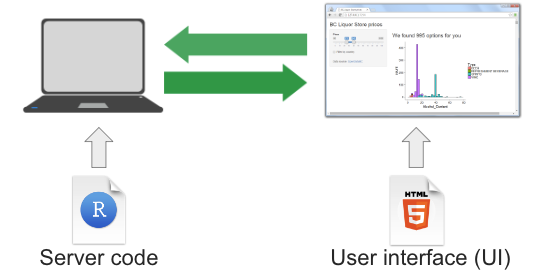 {alt=‘Diagram illustrating
shiny components from Dean Attali’s book’}
{alt=‘Diagram illustrating
shiny components from Dean Attali’s book’}
R Shiny apps are written in R code and consist of a user interface and the server. The user interface (ui) lets us create what the user will see and interact with.
The server builds the outputs that react and update based on user inputs. Shiny apps run on an R Server that delivers rendered content to a web browser.
In practice, this may be a local R session, shinyapps.io, Shiny Server, or RStudio Connect.
Example Shiny app websites
Shiny apps can range from simple interactive visualisations to complex applications used in production.
Take some time to explore these example apps built with Shiny.
- Posit Shiny Gallery
- 2024 Winners of the annual R Shiny
Competition
- What do you like about them?
- What do you not like about them?
- What possibilities do you see for your own work?
Creating a Shiny app
Let’s start by creating a new project called
shiny-qcif.
Within that project, create a folder called data and download or move the lesson data into that folder.
Next, create a new script called app.R and save it in
the same directory as your .Rproj file.
Note a Shiny project can also be created in RStudio using the
New Project Wizard and selecting
Shiny Application. This creates a project with a pre-built
Shiny app in an app.R script. While this is a quick way to
get started once you are familiar with Shiny, here we will build the app
from scratch so learners can see each part as it is introduced.
Shiny files
Although you can put a Shiny app into any type of file initially, once you decide to use it with a Shiny Server, it’s important to note the server will only recognize one of two file configurations:
The entire app is contained within a file called
app.Rthat is found in the top-level directory.The app is split between
ui.Randserver.Rfiles which have code relating to those two parts respectively.
If you do not follow one of these configurations, your app will not be recognized by the server and will not load.
This is not to say you cannot place parts of your app’s
code in different R files. You can do this using the
source() function inside app.R, but we will
return to this later.
The Anatomy of a Shiny app
A Shiny app has three essential parts: a user interface, a server, and a call to shinyApp() that connects them.
Most apps also include setup code at the top of the script to load packages and prepare data.
Shown here together, code below will run and produce a blank app. We will introduce each part in turn and explain how they work.
R
# 1. Setup
library(shiny)

# 2. Define a User Interface
ui <- fluidPage()

# 3. Define a server
server <- function(input, output) {}

# 4. Call shinyApp() to run your app
shinyApp(ui = ui, server = server)
First, the setup.
R
# 1. Setup
library(shiny)
This code runs at the top of the app to load packages and to prepare objects - such as data or color palettes - that do not need to be created dynamically.
Second, the User Interface.
R
# 2. Define a User Interface
ui <- fluidPage()
Here, we use the fluidPage() function to create an
object called ui for later use. The function creates a
fluid page layout — but what does that mean?
Let us print the ui object for curiosity. You do not
normally inspect UI objects directly when building apps.
R
ui
Printing ui may look different depending on where you
run it. In RStudio you may see a blank page, and in the lesson you may
see no output. Both are expected: we have created the page layout, but
it contains no visible elements yet.
Although the page looks empty, fluidPage() has actually
generated HTML code. Shiny works by generating HTML in R and sending it
to a web browser to be rendered.
To see the HTML directly, we can print it as text.
R
cat(as.character(ui))
OUTPUT
<div class="container-fluid"></div>This output shows the HTML that fluidPage() creates. The
browser renders this HTML as a page, which is why we saw a blank layout
instead of text.
At the moment, the page contains only a container. As we add elements to the UI, more HTML will be generated and rendered.
Note that the parentheses () tell us this is a function.
Shiny user interfaces are built by combining functions that generate
HTML. Nesting these functions results in nested HTML elements, which the
browser renders as a page.
Third, we have the server:
R
# 3. define a server
server <- function(input, output) {}
At this stage, the server is an empty function with two arguments:
input and output. These are created by Shiny
for us. The input object reflects values sent from the user
interface, and the output object is where the server
defines what the app will display.
The final part is the call to Shiny, which runs the
app. This function takes the ui and server
objects as arguments. Although these objects could be given different
names, it is standard practice to call them ui and
server.
R
# 4. Call shinyApp() to run your app
shinyApp(ui = ui, server = server)
This final line runs the app by linking the ui and
server.
How do I actually run this?
Once you have saved your app in a file called app.R, you
can run it in RStudio by clicking the Run App button at
the top of the editor, or by running the script as you would any other R
code.
When the app is running: - A Shiny window will open showing your app - Your R console will be busy while the app is active
To stop the app, click the Stop button in RStudio or close the Shiny window.
If you make changes to the code, stop the app first, then re‑run it to see the updated version.
We now have a basic Shiny app and understand how its main parts fit together. Although the app does not yet respond to user input, this structure is the foundation on which all Shiny apps are built.
Be sure to save the app.R script.
- A Shiny app is an R program that generates interactive web content.
- A Shiny app has three required parts: a user interface, a server function, and a call that runs the app.
- The user interface defines what the app looks like, while the server defines how it behaves.
- Shiny works by generating HTML in R, which is rendered by a web browser.