
Inputs and Outputs
Last updated on 2026-10-27 | Edit this page
Overview
Questions
- How can users interact with a Shiny app?
- How do user inputs control what is displayed in the app?
Objectives
- Load data for use in a Shiny app
- Add a user input to control app behaviour
- Use input values in the server to update outputs
So far, we have built the structure of our app and created a user interface, but the app is still static. In this episode, we add user inputs and use them in the server to control what is displayed. This is where the app becomes interactive.
Before we can respond to user input, we need to prepare the data the app will use.
Prepare Data
This lesson uses data from an Employment Projection Model, which provides employment forecasts for South East Queensland. The dataset includes forecast information for 2041, such as occupations and industries associated with residents in each region.
Check that the csv file used in this workshop is located in your project’s data folder. Then add the following lines to the setup section of your app to load the data.
We also load the tidyverse package, which we will use for reading and manipulating the data.
R
# 1. Setup
library(shiny)
library(tidyverse)

bcc <- read_csv("data/bcc_occupation_industry.csv")
str(bcc)
OUTPUT
spc_tbl_ [399 × 6] (S3: spec_tbl_df/tbl_df/tbl/data.frame)
 $ region               : chr [1:399] "Brisbane - East" "Brisbane - East" "Brisbane - East" "Brisbane - East" ...
 $ suburb               : chr [1:399] "Belmont - Gumdale" "Belmont - Gumdale" "Belmont - Gumdale" "Brisbane Port - Lytton" ...
 $ occupation           : chr [1:399] "Specialist Managers" "Health Professionals" "Business, Human Resource and Marketing Professionals" "Chief Executives, General Managers and Legislators" ...
 $ occupation_count_2041: num [1:399] 374 306 232 0 0 0 398 201 173 569 ...
 $ industry             : chr [1:399] "Professional, Scientific and Technical Services (Except Computer System Design and Related Services)" "Hospitals" "Tertiary Education" "Agriculture" ...
 $ industry_count_2041  : num [1:399] 341 308 223 0 0 0 395 221 213 595 ...
 - attr(*, "spec")=
  .. cols(
  ..   region = col_character(),
  ..   suburb = col_character(),
  ..   occupation = col_character(),
  ..   occupation_count_2041 = col_double(),
  ..   industry = col_character(),
  ..   industry_count_2041 = col_double()
  .. )
 - attr(*, "problems")=<pointer: 0x560e49a6cf60>
Challenge
Explore the data
Take a minute to inspect the dataset and identify variables that a user might reasonably control using an input object (for example, via a dropdown menu).
Examples of variables that could be controlled by a user include
region, suburb, and
occupation.
Variables that represent derived values or rankings (such as counts or ranks) are less suitable as direct user inputs at this stage.
Adding Inputs to the User Interface
Now that we have data, we need to give our user the tools to explore
it. Shiny provides a wide range of functions for creating
Inputs. These functions follow a consistent naming
pattern, using camelCase and ending in Input - such as
selectInput() and sliderInput().
The function then takes an inputID argument - a string
which will be used to refer to the input later on in the server. Then a
label argument, for what the user will see as the text
describing the input. Finally, a wide variety of input specific
arguments.
For our app, we want to add a selectInput() that allows
the user to choose a region.
Looking at ?selectInput we see we need the following
arguments:
-
inputId- a name for our input -
label- what the user sees -
choices- some choices select from. It’s good practice to use the data for these values, e.g. with theunique()function, to ensure you do not enter a value that is not found in the data.
Let’s insert an input object into our
sidebarPanel():
R
# 2. Define a User Interface
ui <- fluidPage(
  titlePanel("This is the title panel"),
  sidebarLayout(
    sidebarPanel(
      selectInput(
                inputId = "region_select",
                label = "Choose a region",
                choices = unique(bcc$region)
                )
      ),
    mainPanel("put outputs here")
  )
)
Save and run your app, and see that a dropdown menu with the different regions appears. Change the selected region. Notice that although the input value changes, the app output does not yet respond. This will change in the next section.
Input Widgets
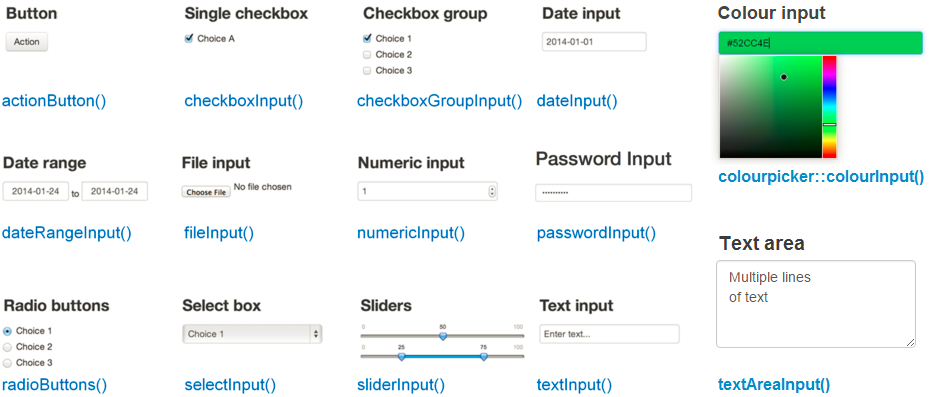
This is just the start of what is possible with input widgets. Shiny provides many built‑in inputs, and additional packages extend these options further.
Adding Outputs to the User Interface
Next we need to tell Shiny where outputs should appear in the user
interface. Much like the *Input() functions, Shiny provides
a set of *Output() functions that define placeholders in
the UI where results will be displayed.
| Function | Output Type |
|---|---|
| plotOutput() | plot, ggplot |
| tableOutput() | table or data frame |
| textOutput() | text |
| htmlOutput() | HTML code |
Like inputs, these functions have a first argument - in this case
outputId which is a character string, and will be used
elsewhere in the app. Other arguments to these functions vary by output,
but can be used to do things like specify output window size, scaling,
and more.
Let’s add a tableOutput() to our app that will display
the top occupations of the selected regions. This will go in our
mainPanel():
R
# 2. Define a User Interface
ui <- fluidPage(
  titlePanel("This is the title panel"),
  sidebarLayout(
    sidebarPanel(
      selectInput(
                inputId = "region_select",
                label = "Choose a region",
                choices = unique(bcc$region)
                )
      ),
    mainPanel(
      tableOutput(outputId = "occupation_table")      # this is new!
    )
  )
)
Render your app to make sure it works.
Notice that the table does not show up! This is expected: we have defined a placeholder in the UI, but we have not yet told the server how to produce the output.
To make this output appear, we now need to add server logic that tells Shiny how to create the table output based on the selected region.
Using input values in the server to produce outputs
It is now time to look more closely at the server. Recall that the server code looks like this:
R
# 3. define a server
server <- function(input, output) {}
At the moment, this is just an empty function. It is the code we place inside this function that gives the app its behaviour.
The server function takes two arguments: input and output. These are lists created by Shiny.
- The input list stores values coming from the input widgets defined in the UI.
- The output list stores results generated by the server that will be displayed in the UI.
The names used in the UI connect these lists together. For example,
the value selected using our selectInput() can be accessed
as input$region_select, and the output we defined using
tableOutput() will be referred to as
output$occupation_table.
Generating outputs in the server
To generate output in a Shiny app, we add elements to the output list
inside the server function. Each output is created using a
render*() function that matches the corresponding
*Output() function defined in the UI.
A useful pattern to remember is that:
-
*Output()functions define where output appears in the UI -
render*()functions define how that output is created in the server
Shiny provides a family of render*() functions, such as
renderPlot(), renderTable(), and others.
The code inside a render*() function is re‑run
automatically whenever its dependencies change. This allows the app to
respond dynamically to user interaction.
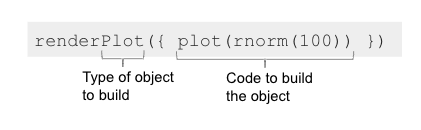 Note that the code inside
 render*() functions is enclosed
in curly braces {}. These braces define a block of code
that Shiny runs to generate the output. You can think of them as
grouping multiple lines of code together and passing them to the
rendering function as a single unit.
We now modify the server to generate the output defined in the user interface.
To create our table, we use functions from the tidyverse to filter
the data based on the region selected by the user, using the value
stored in input$region_select, and then select the relevant
columns to display in the output table.
Specifically, we want to:
- filter() the data to the selected region.
- group_by() to group rows by occupation.
- summarise() to combine duplicate occupations by summing
occupation_count_2041so we return one row per occupation and drop the grouping. - arrange() the data in descending order.
R
# 3. Define a server
server <- function(input, output) {

    output$occupation_table <- renderTable({
      bcc %>%
        filter(region == input$region_select) %>%
        group_by(occupation) %>%
        summarise(
          occupation_count_2041 = sum(occupation_count_2041, na.rm = TRUE),
          .groups = "drop"
        ) %>%
        arrange(desc(occupation_count_2041))
    })
}
Save your script and run the app again. This time, the
occupation_table appears in the main panel and updates when
a different region is selected.
How did it go?
And there you have it - a basic Shiny app! Take a minute to interact with the app by selecting different regions.
What do you learn from exploring the data this way?
How might you change or extend this app to make it more useful?
Modify the output table
Update the server code so that the table displays only the occupation names, and no longer includes the occupation count column.
One possible solution is shown below.
Here, the select() function is used to drop the
occupation_count_2041 column.
R
# 3. Define a server
server <- function(input, output) {

  output$occupation_table <- renderTable({
    bcc %>%
      filter(region == input$region_select) %>%
      group_by(occupation) %>%
      summarise(
        occupation_count_2041 = sum(occupation_count_2041, na.rm = TRUE),
        .groups = "drop"
      ) %>%
      arrange(desc(occupation_count_2041)) %>%
      select(occupation)                        # this is new!
  })
}
In this episode, we built a working Shiny app by connecting user
inputs to server logic and producing outputs. We implemented this
interactivity by placing all of our data processing directly inside the
render*() functions.
This approach works well for simple workflows, where each output depends on a small amount of logic. However, as apps grow and multiple outputs begin to share the same calculations, this pattern can become repetitive and harder to maintain.
Shiny provides reactive expressions to help separate and reuse server logic more effectively. In the next episode, we introduce reactive expressions and show how they can be used to organise more complex apps.
- Shiny apps become interactive by connecting user inputs to server logic that produces outputs.
- Inputs are defined in the UI using
*Input()functions and accessed in the server through the input list. - Outputs have placeholders in the UI created with
*Output()functions and are generated in the server using matchingrender*()functions. - Code inside a
render*()function is re‑run automatically when the input values it depends on change. - Server logic controls how user input is translated into displayed output.